 LimnAll guides
Making and sending client reports
Client reports is under AI & reports in the left sidebar.
Build a report
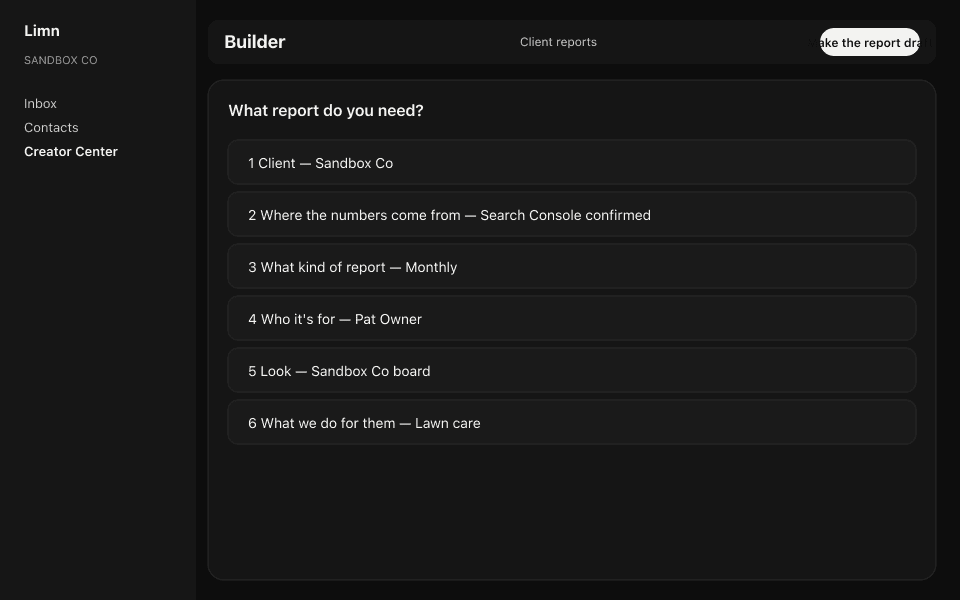
The builder asks six questions about one client and saves the report as a draft. Nothing is sent from the builder. Open Client reports → Build a report.
- Client: pick the business the report is about.
- Where the numbers come from: Search Console, Google Analytics, the Google listing, Google Guaranteed (its ads account), and Facebook and Instagram. Anything Limn found on its own shows Confirm; press it, or Confirm all. A source left unconfirmed is left out of the report. Press Not used for this client for a source that isn't theirs.
- What kind of report: Monthly (30 days), Quarterly review (30 and 90 days), Year in review, Pick the periods, or Custom dates (last month, last quarter, year to date, or two ranges side by side). Make this their usual report saves the choice. Turn on Write the story in our voice for the written summary.
- Who it's for: search the client's people and pick who it is addressed to. The letter opens "Hi there," until someone is picked, and it cannot be sent without one.
- Look: the logo and colours on the cover.
- What we do for them: the services you provide, anything to Never mention, and up to six search groups.
- Press Make the report draft. The draft appears in the queue.
What goes in it
You don't pick sections. Each one appears when its source is connected in step 2.
How it went
- Shows up when
- Always
Calls and messages
- Shows up when
- The client gets calls from the Google Guaranteed badge, the Google listing or Limn's phone line, counted as one total
Showing up on Google, What people typed into Google
- Shows up when
- Search Console is connected
Your Google listing
- Shows up when
- The Google listing is connected
Google Ads results
- Shows up when
- Google Guaranteed's ads account is linked. Results only, never spend
Social media
- Shows up when
- The client's Facebook and Instagram are connected
What we recommend next
- Shows up when
- Always
Six-month reports can also show a line chart of this client against "a comparable company (name withheld)". Its numbers are not filled in automatically yet, so the line may be missing. Reports never show cost or ad spend.
Open the draft from the queue to read the letter, redraft the story, hide or show the numbers at a glance, and preview the PDF.
If you see An agency admin confirms these., your login can't confirm sources. Ask an agency admin to confirm them.
Send a report
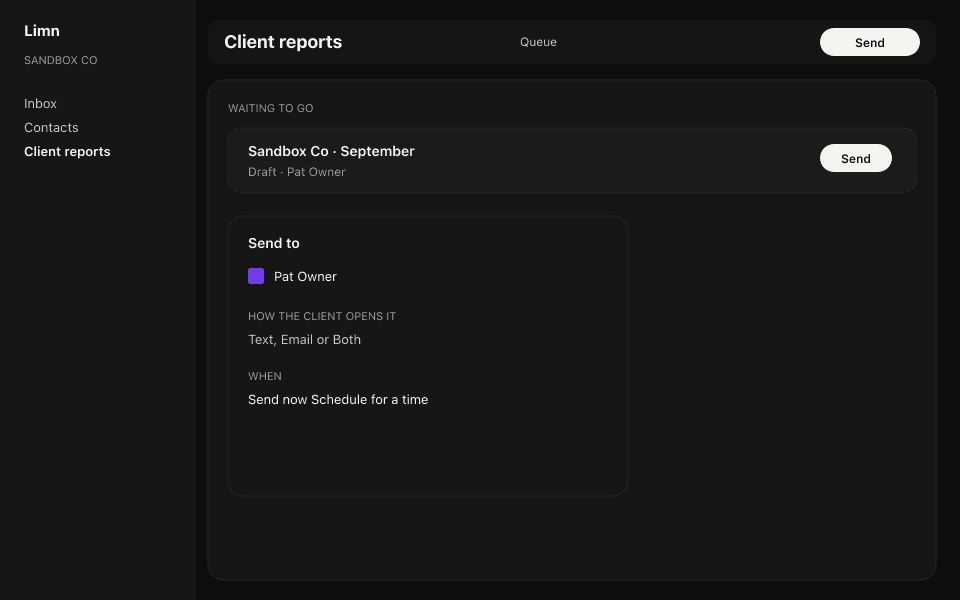
Every report is sent from the queue, never from the builder. Sending is for agency admins, so if you don't see Send, ask one.
- In Client reports, find the client's row and press Send.
- Under Send to, tick the people, then choose Text, Email or Both.
- Check How the client opens it, the text message, and the email subject and message.
- Under When, pick Send now or Schedule for a time.
Send a client's report to your own team: in Send to, you can also pick people on your agency's own business. The screen shows which business the report is filed under before it goes. Nobody at a different client can be picked.
Upload a PDF you made elsewhere
- Press Upload a PDF and drop the file in (up to 50 MB).
- In For, search for the client contact. Limn shows Filed under and the business it will sit under, before you save.
- Fill in Title, Period and From, then press Save and review send. The queue opens with the report on top and its Send screen open. Nothing goes out until you press Send now.
- Save draft keeps the report in the queue, under To send, to send later.
Fix a report after it went out
- Replace PDF swaps the file on a draft, sent or viewed report. The client's link stays the same and opens the new file.
- Resend to… sends a sent or viewed report again, on the same links.
Send it every month on its own
On the Schedules tab, press Set up a schedule. Pick Every month or Every quarter, the day of the month, the template and who it's for. Then choose Require approval (drafts wait in the queue) or Send automatically when generated.
More guides
Something on screen not matching these steps? Write to support@launchwithlimn.com with the name of the screen you were on.