 LimnAll guides
Posting to social
Posts are made in Creator Center, under Marketing & reviews in the left sidebar.
Write and publish a post
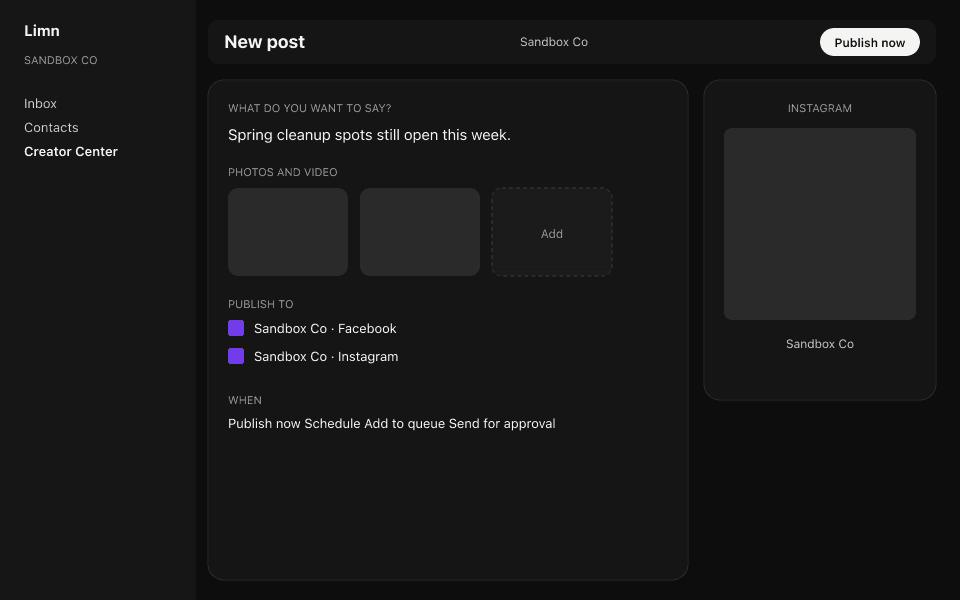
Attach two or more photos and Instagram posts them as a swipeable carousel. Facebook and LinkedIn post them together as one multi-photo post. Start from Creator Center → Create → New post, or Posts → New post.
- Write the post in What do you want to say? The toolbar above it has templates, emoji, Write with AI, mentions and hashtags.
- Put hashtags in First comment if you want them out of the caption. Add a Location to tag it on Facebook and Instagram.
- Under Photos and video, press Add. Pick from the media library or press Add images to upload new ones. The order you tap them is the order they post in, and you can reorder, crop or remove each one after.
- Under Publish to, tick each account. The client's accounts are at the top; Select all ticks every one. Customize for this platform gives one account its own text, and lets Facebook and Instagram post as a Feed post, Reel or Story.
- Under When, pick Publish now, Schedule, Add to queue or Send for approval, then press the button at the bottom. Save draft keeps it without posting.
Carousels and limits
- Photos in one post
- up to 10
- Notes
- Several photos post together as a photo album. A link carousel is also possible (below)
- Photos in one post
- up to 10
- Notes
- Several photos post as a swipeable carousel. Needs at least one photo or video
- Photos in one post
- up to 9
- Notes
- Several photos post as a photo grid
Google Business
- Photos in one post
- 1
YouTube, TikTok
- Photos in one post
- 0
- Notes
- Video only
With two or more photos attached, the line under them says what each ticked account will post.
A Story takes one photo or one video of 60 seconds or less. A Reel must be a video.
Facebook link carousel
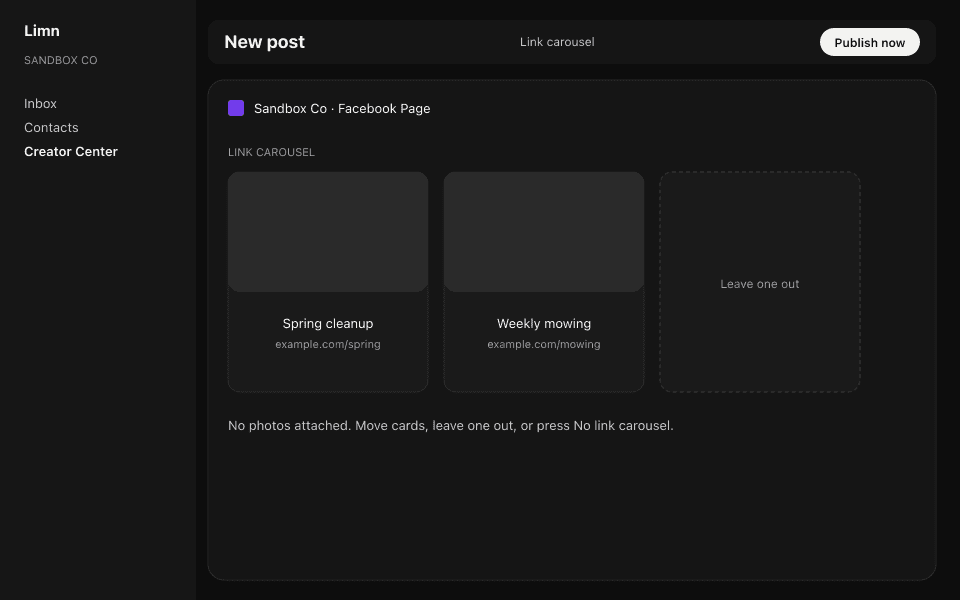
A link carousel is a swipeable row of 2 to 5 website cards.
- Tick a Facebook Page and attach no photos or video.
- Paste two or more web addresses into the post text.
- A Link carousel panel appears. Move cards up or down, leave one out, or press No link carousel to post plain text.
- Each card's picture and title come from the linked page and cannot be edited in Limn.
Scheduling, approval and where posts show up
- Schedule asks for a date and time in the client's own time zone, and suggests a best time.
- Send for approval makes a link the client can open without logging in. It lasts 14 days. Editing the post afterwards pulls it back to a draft.
- A scheduled post is locked. Press Unschedule to edit it.
- Posts lists everything, with Filters for Draft, Awaiting approval, Scheduled, Published and Failed. Calendar shows only posts that have a date.
- If an account shows Reconnect needed, ask an agency admin. The client has to sign in again on that platform.
More guides
Something on screen not matching these steps? Write to support@launchwithlimn.com with the name of the screen you were on.